

Google has recently introduced new restrictions that limit the number of free monthly queries available for services like reCAPTCHA and Google Maps. Until now, Gecko managed these services on behalf of clients using our agency Google Cloud account, but the updated limits mean this approach is no longer viable.
To avoid interruptions to your website services, each client now needs to create their own Google Cloud billing account and then grant Gecko access so we can manage the technical setup for you.
This guide takes you through every step.
1. Before You Start, You Will Need a Google Account
To use Google Cloud, you must log in using a Google Account. This does not need to be a Gmail address.
- You can use any personal or work email address.
- If your email is not already registered as a Google Account, Google will prompt you to create one.
- This process takes only a few minutes.
If you need help creating a Google Account using your own email address, follow our guide here:
How to Set Up Google Tag Manager, GA4 & Search Console (and Give Us Access Without the Headaches)
Once your Google Account is ready, continue below.
2. Start Your Free Google Cloud Trial
- Visit https://console.cloud.google.com/
- Log in using your Google Account.
- Click Start Free.
- You will see a form asking for your location and terms acceptance.
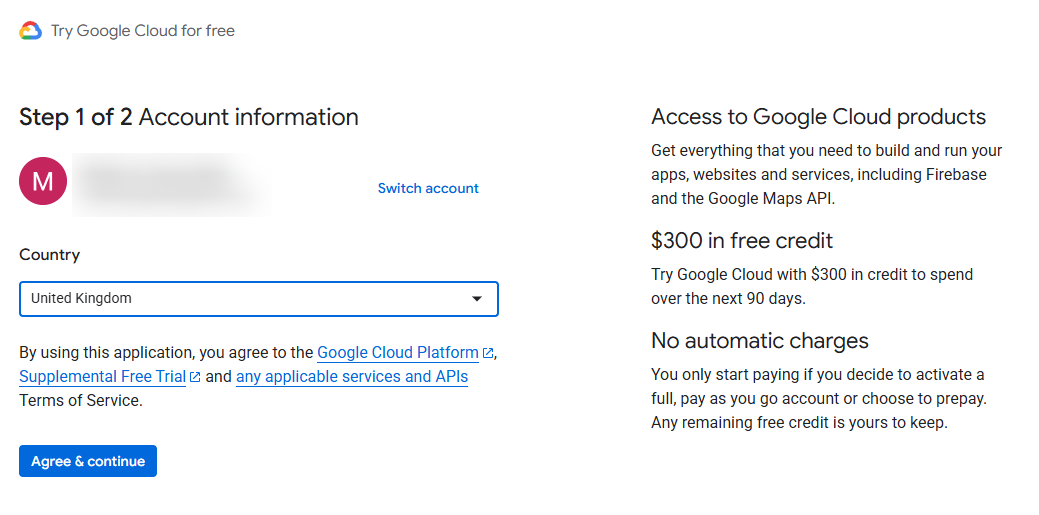
Select United Kingdom, agree to the terms and continue.
3. Add Your Billing Information
Google Cloud requires a valid payment method for identity verification. You will not be charged unless you manually choose to upgrade your plan.
- Enter your name and address.
- Add a debit or credit card.
- Approve any verification pop-ups.
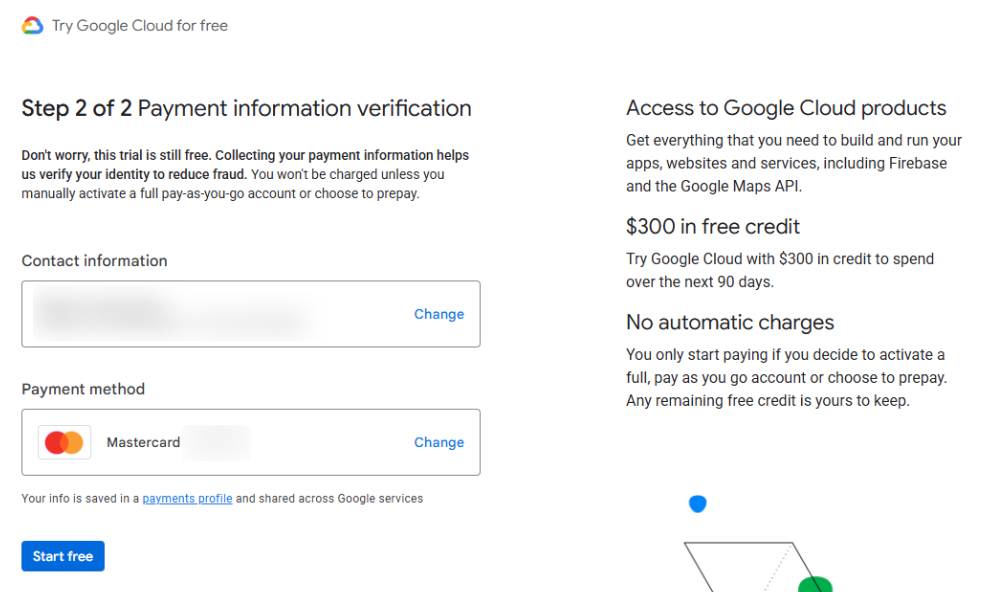
Once verified, click Start Free.
4. Complete Google’s Quick Setup Questions
Once your account is activated, Google asks you to answer a short onboarding questionnaire. You can just click "Done", there is no need to answer these questions.
5. Activate Your Full Account
After completing identity verification, Google will prompt you will see your dashboard, at this stage we suggest that you activate your full account. This ensures that services like reCAPTCHA and Google Maps continue working beyond the initial trial period.
On your Dashboard click the blue "Activate Full Account" button.
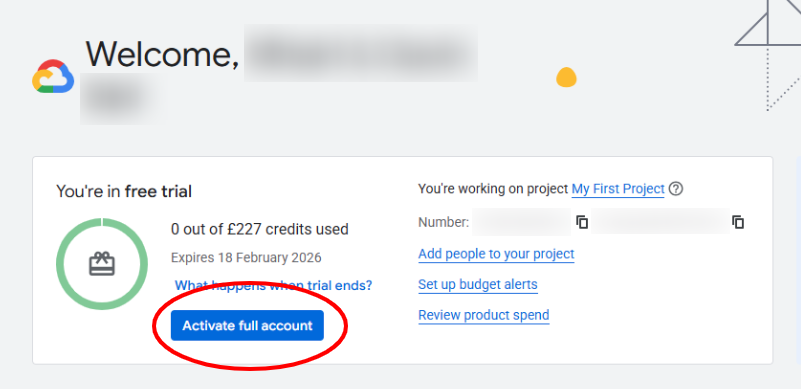
Click Activate. Google will then confirm activation
Click Continue.
6. Rename the Default Google Cloud Project
By default Google will have created a project for you and will have named it My First Project, which is not helpful for us or for you! You will see this on your Dashboard where it will say "You're working on project My First Project".
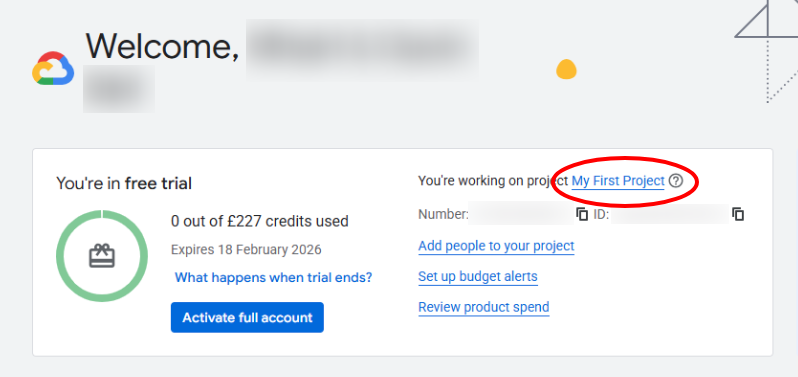
Click the link to open up your project. And on the next screen look for the link to "Go to Project Settings"
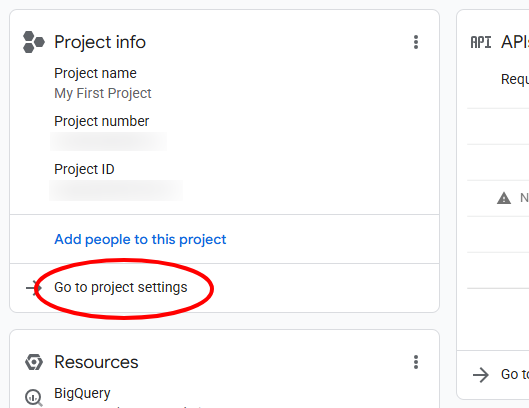
This is where you can rename your project. Our recommended naming format is as follows:
[Your Business Name] Website Project
Examples:
- Greenvale Farm Website Project
- Smith & Co Website Project
This helps us identify your project quickly when you share access.
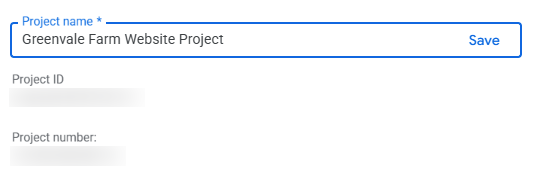
Click Save.
7. Share the Project With Gecko
Now that your project is created, you must give Gecko access so we can configure your reCAPTCHA and Google Maps keys.
- In the left menu, go to IAM and Admin
- Click IAM
- Under View by principles, click Grant access
- In New principals, enter: google@wearegecko.co.uk
- Under Select a role, type Editor
Your screen should look similar to this:
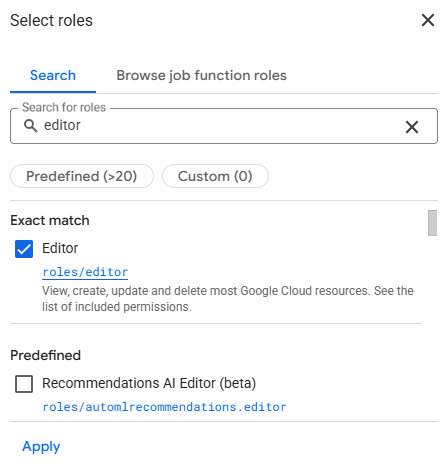
Click Apply and Save.
8. Tell Us When You Are Done
Once you have shared access, please contact your Gecko project manager or email support@wearegecko.co.uk to let us know.
We will then:
- Create and secure your API keys
- Connect your keys to your website
- Check everything is working as intended
Optional: Set Up a Billing Alert
We recommend opening the Billing area using the menu at the top left, then creating a budget alert. This lets you choose a monthly amount and receive an email if your usage approaches or exceeds it. It is a simple way to keep track of your costs and avoid surprises.
Need Help?
If you would like us to walk you through the setup on a call, or complete the steps with you, we are more than happy to assist. Just let us know.