Right, we get it - Google tools can be about as clear as a foggy Monday morning in Leith. But if you’re looking to track what’s happening on your website (and let us do the clever stuff behind the scenes), you’ll need to get three things in place: Google Tag Manager, Google Analytics 4 (GA4), and Google Search Console.
The good news? It’s not as scary as it looks - and once you’ve done it, you can leave the rest to us. Here’s our simple, no-nonsense guide to setting things up and giving us access so we can get cracking.
First Things First: Got a Google Account?
Before you start, you’ll need a Google account. And no, it doesn’t have to be a Gmail address - you can use your own work email (and we highly recommend that).
How to create a Google account with your work email
- Go to accounts.google.com/signup
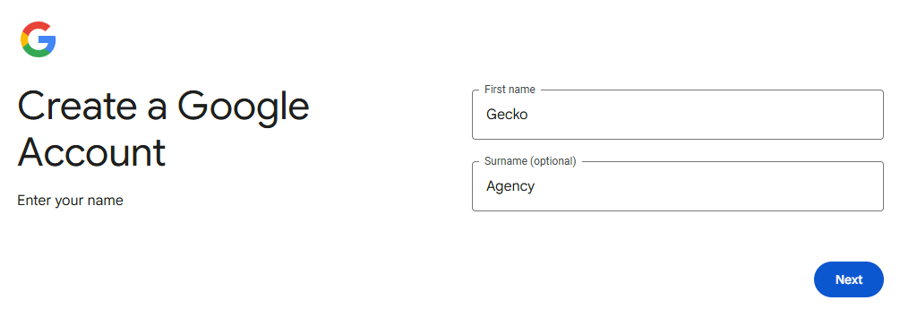
- Enter your name
- Add your birthday & gender
- Enter your work email address (e.g. you@yourcompany.co.uk)
- Follow the steps to verify your email and set your password.
That’s it - you’ve now got a Google account without needing a Gmail address. Once that’s done, you can carry on with setting up Tag Manager and GA4.
Step 2: Set Up a Google Tag Manager Account
If you don’t have a Tag Manager account already:
- Head over to tagmanager.google.com
- Click “Create Account”.
- Fill in your account name (usually your business name).
- Under “Container name”, add your website domain (e.g. yourwebsite.co.uk).
- Select “Web” as the target platform.
- Hit “Create”, agree to the T&Cs, and you’re in!
Now, give us access:
- From your GTM dashboard, click Admin (top left).
- Under “User Management”, click the blue “+” (top right) > Add users.
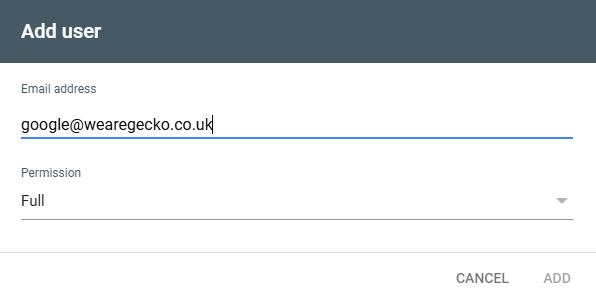
- Add google@wearegecko.co.uk
- Tick “Publish” permissions (the rest will auto select).
- Click Invite.

Step 3: Set Up Google Analytics 4 (GA4)
If you don’t have GA4 set up yet:
- Go to analytics.google.com
- Click the blue “Start measuring” button.
- Fill in your account name (usually your business name) and make sure the relevant data-sharing settings are ticked for you.
- On the next screen, set up a Property.
- A property is just the thing you want to track - usually your website.
- Give it a name like mybusinessname.co.uk or Main Website, choose your time zone and currency, and click Next.
- Set your reporting time zone and currency.
- Click Next, then add your business info (industry & size).
- When you reach the Business Objectives screen, choose the options that best match what your website is for:
- If your goal is to get enquiries or leads (e.g. contact form, quote requests), tick Generate leads
- If you sell products or take payments online, tick Drive sales
- For most websites, it’s helpful to also tick Understand web and/or app traffic and View user engagement and retention
- Don’t worry too much - you can select more than one, and nothing here is permanent
- Choose the platform for your data stream, this is usually "Web" unless you are adding this to an App.
- Enter your website URL, give the stream a name e.g. "Website" and ensure Enhanced Measurement is turned on.
- Click "Create and Continue".
Boom - you’ve now got a GA4 property.
Now, add us to your GA4 account:
- Go to your GA4 Admin panel (cog down in the bottom left)
- Under the Account section, click "Account access management".
- Click the blue “+” > Add users.
- Enter google@wearegecko.co.uk
- Assign us Editor role (we don’t need admin access for GA4).
- Click Add.

Step 4: Let us know
Once you’ve added us to both Google Tag Manager and GA4, just give us a shout - we’ll take it from there.
We’ll install Tag Manager on your website, connect GA4 properly, and make sure your analytics are firing and collecting data as they should.
Once that’s done, we’ll let you know - and you can then complete the final step: setting up and verifying Google Search Console, so we’re ready to request indexing and monitor your site once it goes live.
No stress - just clean, working tracking and everything in place for launch.
Step 5: Add Gecko to Google Search Console
Once you’ve given us access to Tag Manager and GA4 - and we’ve installed them on your website - you can go ahead and set up Google Search Console.
Search Console is a free tool from Google that helps us make sure your website is visible in search - and lets us spot any issues that could affect how (or if) your site appears.
When your site goes live, we’ll use Search Console to ask Google to crawl and index it properly. This gives us early visibility of how your new site is performing and ensures there are no surprises post-launch.
Even if you’ve never used it before, it’s quick to set up - and it’s the first step if you want to keep improving your visibility in Google search.
Want help with SEO after launch? Search Console gives us the data we need to support you with content, performance tracking and optimisation over time.
How to set up and verify Search Console:
- Go to search.google.com/search-console
- When prompted to select a property type, choose the URL prefix option (on the right)
- Enter your full website URL, including https://
- Click Continue
- When asked how you’d like to verify the site, choose the Google Tag Manager method
- This will only work after we’ve installed the Tag Manager code on your site
- You must have publish permission for the GTM container - which you will, if you followed Step 2
- Click Verify - and that’s it
Give Gecko access
Once verified, you’ll need to give us access so we can monitor the data:
- In Search Console, go to Settings > Users and permissions
- Click Add user
- Enter google@wearegecko.co.uk
- Set the access level to Full
- Click Add